
You don’t need to buy an iPhone Duo to start checking how your website looks on it. Available since Friday, October 23, 2026, Apple’s foldable smartphone introduces new screen formats that our websites need to adapt to.
Its passport-sized design lets you switch from a compact outer display to an inner screen closer to a small tablet, like an iPad mini. The iPhone Duo can also stay partially open, like a book.
For a website, these changes in screen format mean checking that the menu stays accessible, images fit the available space, and the page remains readable after rotation.

On Mac, Device Hub, included with Xcode, lets you open your website in Safari on a simulated iPhone Duo.
This lets you spot initial layout and navigation issues without owning the phone. Here’s how to do it, step by step.
1. Open Device Hub from Xcode
You’ll need a Mac compatible with Xcode 27.1, with the iOS 27.1 simulator installed.
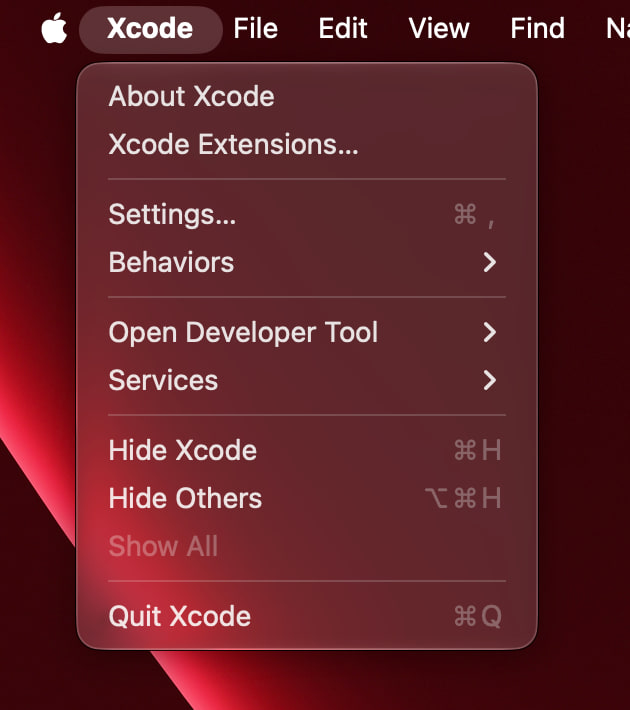
Open Xcode, then choose the following from the menu bar:
Xcode → Open Developer Tool → Device Hub
There’s no need to create an iOS app project: you can simply open your website in Safari inside the simulator.
2. Choose the iPhone Duo Simulator
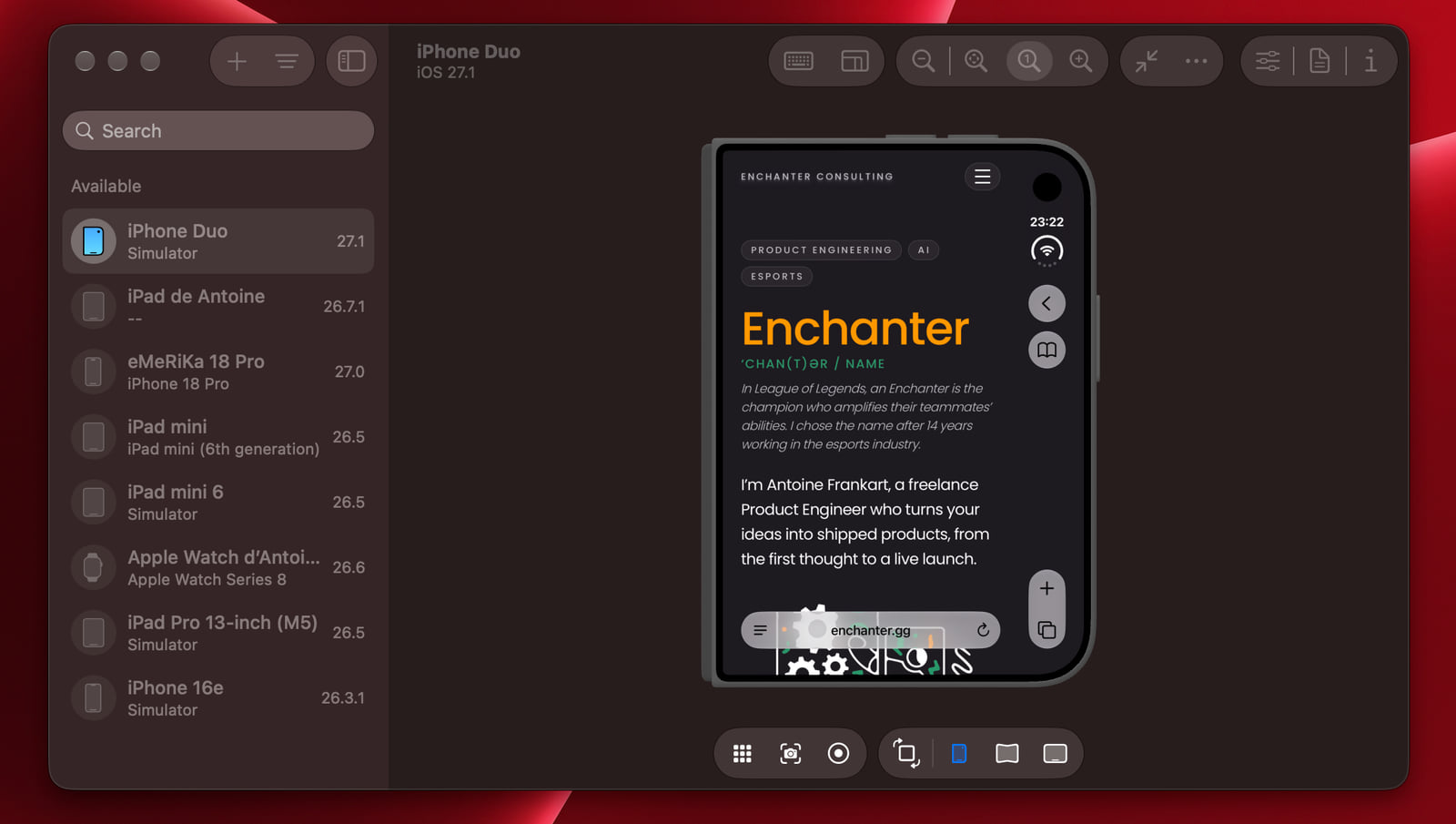
In the Device Hub sidebar, select iPhone Duo, making sure it is labeled Simulator.
If it isn’t listed, click +, then choose a device under Simulators. Select the iPhone Duo model and the available iOS version, then click Create. If the version you need is missing, install the corresponding components in Xcode first.
The simulator lets you switch between a closed and an open phone, then rotate the display. These controls sit below the device: Closed, Partially Open, Open, and a rotation button.
3. Test the Website Across Screen Formats
Open Safari in the simulator and enter your website’s address. Start with the iPhone Duo closed: scroll through a representative page and try the main interactions, such as opening the menu or accessing a form.
Next, click Open in the controls below the device. The website should adapt to the available space without a manual reload. Rotate the device to switch from portrait to landscape. You can also try the Partially Open pose.
Navigate between several pages to check that these changes in screen format don’t disrupt the user journey.
A First Check, Not a Guarantee
The simulator helps you spot layout and navigation issues. It doesn’t guarantee that everything will work perfectly on the actual phone, particularly when it comes to performance and how comfortable the site is to use by touch.
You can also get help from AI for these tests through a QA agent using Computer Use, as I explain in this other article.
📌 Need to check your website’s responsive layout or improve a mobile user journey? I can help with my Product Engineering services.
Sources
- Apple, iPhone Duo announcement and availability.
- Apple Developer, prepare your app for iPhone Duo with Xcode 27.1.
- Apple Developer, open Device Hub and add simulators and use the pose and rotation controls.